


PDF to Word: The Complete Guide to Converting Documents the Right Way
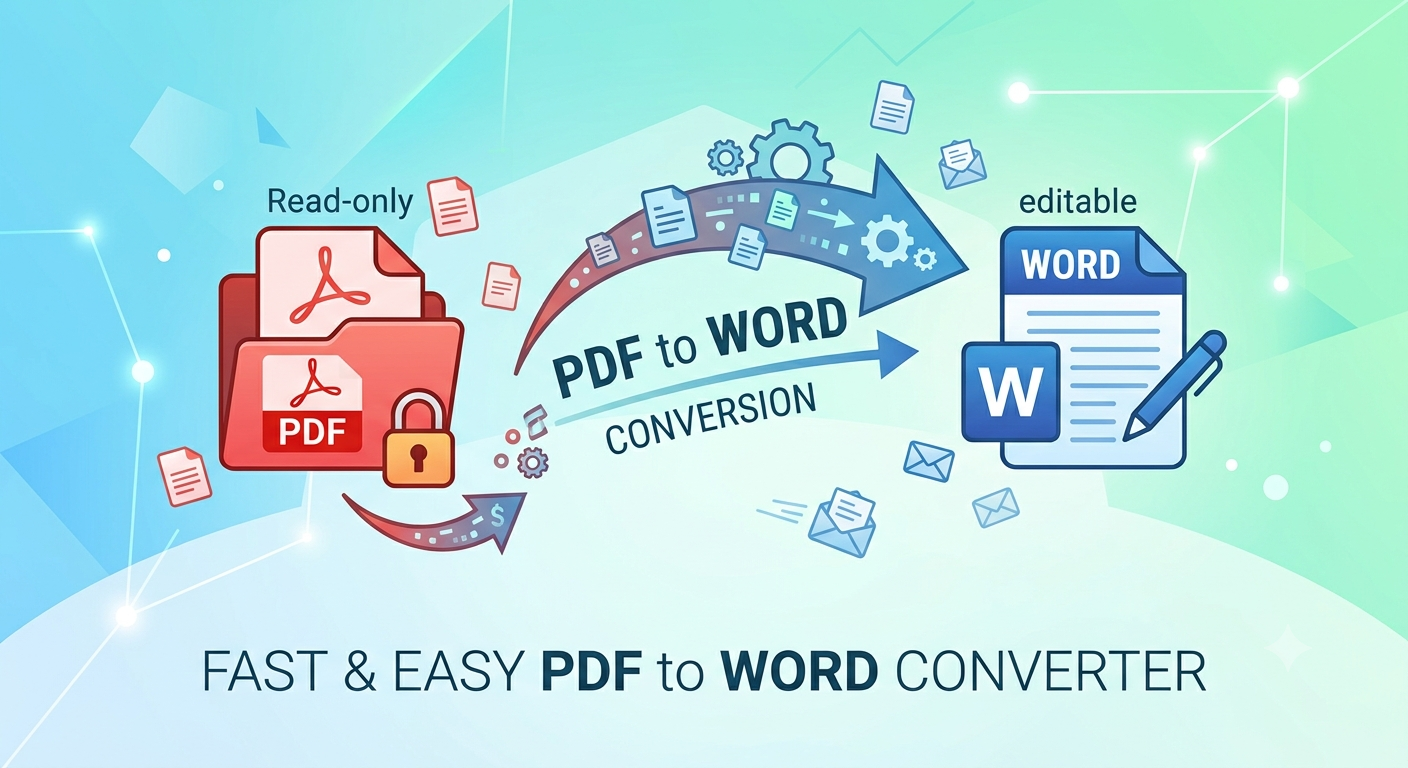
PDF files are great for sharing and preserving formatting but terrible when you actually need to edit the content. Whether you're updating a contract, repurposing a report, or fixing a typo in an old resume, converting a PDF to Word is often the fastest way to get your document back into an editable format.
This guide covers everything you need to know: why conversions sometimes go wrong, the best methods available today, and how to choose the right approach for your specific document.
Why Convert PDF to Word?
PDFs are designed to look the same everywhere that's their strength. But that same rigidity PDF to Word makes them hard to work with when you need to:
- Update outdated text, numbers, or dates
- Copy large sections of content into another document
- Reformat a document's layout, fonts, or structure
- Fill in and customize a form or template
- Translate or repurpose content for a different audience
Word documents (.docx), on the other hand, are built for editing. Converting gives you the best of both: the polished look of a PDF, with the flexibility of Word underneath.
What Makes a Good PDF-to-Word Conversion?
Not all conversions are equal. A high-quality conversion should preserve:
- Text accuracy no garbled characters, missing words, or misread fonts
- Layout and formatting headings, spacing, columns, and page breaks stay intact
- Tables and lists structured data doesn't collapse into a jumbled mess
- Images and graphics visuals stay positioned correctly, not scattered or resized
- Fonts the converted file uses fonts that match (or closely resemble) the original
The biggest challenge is usually scanned PDFs — image-based documents with no underlying text layer. Converting these properly requires Optical Character Recognition (OCR), which "reads" the image and turns it into actual, editable text.
Methods for Converting PDF to Word
1. Microsoft Word's Built-In Converter
Modern versions of Word can open a PDF directly and convert it automatically:
- Open Word → File → Open → select your PDF
- Word will notify you it's converting the file to an editable document
- Save the result as .docx
This works well for simple, text-based PDFs but can struggle with complex layouts, multi-column pages, or scanned documents.
2. Online PDF-to-Word Converters
Web-based tools let you upload a PDF and download a Word file within seconds. These are convenient for quick, one-off conversions and don't require any software installation. When choosing one, look for:
- Support for OCR (for scanned files)
- A reasonable file size limit
- Clear privacy practices, since your document is uploaded to a third-party server
3. Desktop PDF Software
Dedicated PDF applications (like Adobe Acrobat) offer more robust conversion engines, better OCR accuracy, and batch processing options for converting multiple files at once. These tools are worth it if you convert documents regularly or work with complex, image heavy PDFs.
4. OCR-Specific Tools
For scanned contracts, old records, or photographed documents, a dedicated OCR tool will usually outperform general-purpose converters. These tools are trained specifically to recognize text within images and reconstruct it as clean, searchable content.
Tips for a Cleaner Conversion
- Start with the best-quality PDF you can. A high resolution scan converts far more accurately than a blurry photo.
- Check tables and columns first. These are the most common casualties of poor conversion always review them carefully.
- Expect some manual cleanup. Even the best tools rarely produce a perfect 1:1 match; budget a few minutes for formatting fixes.
- Convert small sections for complex documents. If a file has mixed content (text, tables, images, forms), converting page-by-page can sometimes yield cleaner results.
- Keep a backup of the original PDF. Always retain the source file in case you need to re-convert or reference the original formatting.
Also Check Out : Multiconverters
Common Use Cases
- Job seekers updating an old resume that only exists as a PDF
- Students and researchers extracting text from academic papers for citations or notes
- Businesses editing contracts, proposals, or reports without recreating them from scratch
- HR and legal teams modifying templates and forms while preserving structure
- Content teams repurposing PDF guides or whitepapers into blog posts or new documents
Final Thoughts
Converting a PDF to Word doesn't have to be complicated. For simple, text-based documents, built-in tools or free converters will usually do the job. For scanned files, complex layouts, or documents where formatting accuracy really matters, investing a bit more time in OCR capable or dedicated software will save you from a messy cleanup later.

 Arabic
 French
 Spanish
 Portuguese
 Deutsch
 Turkish
 Dutch
Dutch
 Italiano
 Russian
 Romaian
 Portuguese (Brazil)
 Greek
Greek
